Blog · No-code
Bubble App: How to create an app with Bubble?

How to develop a web application using the Bubble tool? Scroll tells you everything
You’ve chosen a web app to take your business to the next level but don’t know how to develop it? With Bubble, create a powerful and unique app! Where to start? We explain it all!
Bubble: a tool for creating apps
Bubble was created in 2012 when a group of traditional developers wanted to break the conventions of web development and enable non-coding team members to work with them on the same projects.
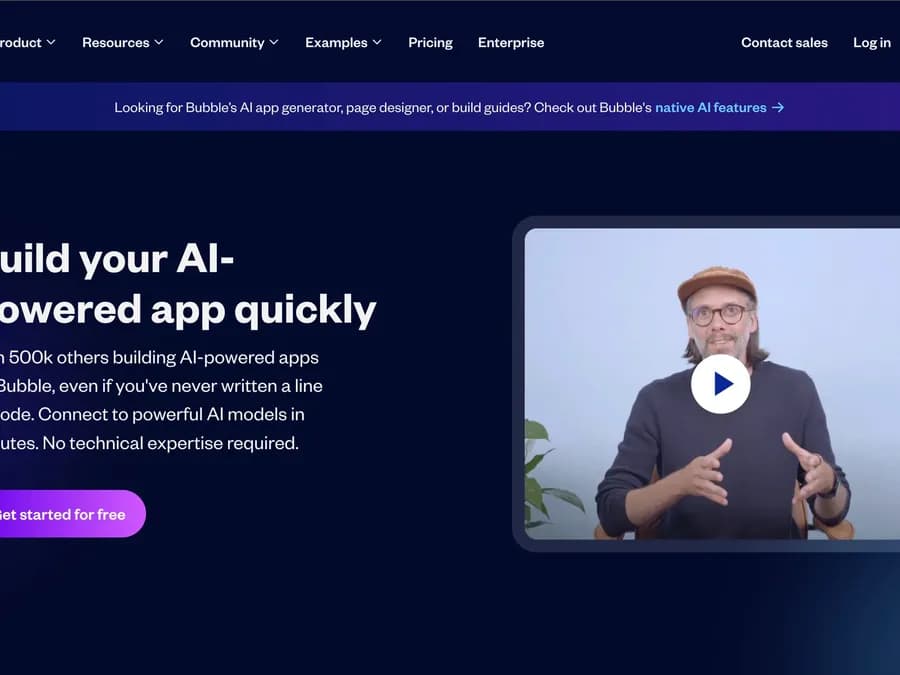
Bubble’s goal is to simplify web application development, making it accessible to all users by simply learning how to use the tool. It defines itself as a no-code app builder—a code-free application creator—that allows you to develop complete solutions without writing a single line of code. Thus, no programming language knowledge is required to use Bubble.
Like most no-code app builders, Bubble relies on a visual creation principle, thanks to an advanced graphical interface and methods like drag-and-drop.
The advantages of Bubble for creating an app
If Bubble is so successful in web app development, it’s because it offers many advantages. Here are a few:
Bubble makes app development more accessible
With Bubble, you don’t need any knowledge of programming languages to develop a highly professional application. App development is no longer reserved for full-stack developers, who can sometimes be hard to find. Now, you can hire a Bubble developer or train yourself on the tool, which is much simpler than learning a programming language.
Users can try Bubble for free
To get started with the platform and create a basic first app, Bubble offers a free version. The tool provides a limited set of features to help you familiarize yourself with its interface and development method.
A multitude of features to create the app of your dreams
Bubble is one of the no-code app builders offering the most advanced features on the market. With this tool, you can develop the app of your dreams in terms of both design and functionality. It includes advanced features like user management, authentication, payments, notifications, and more. Everything you need to build a modern and high-performing app.
Bubble improves collaboration
What’s better than working in real time with your team on a shared project? Bubble enhances team efficiency by offering various online collaboration tools, such as chat, file sharing, and task management. Graphic designers, UX designers, and developers can all work together on Bubble!
How to create a Bubble app?
Let’s not forget the main topic of this article: how to build an app on Bubble?
The first step is to find the idea for your app. It’s not the easiest part, but don’t worry—Bubble’s resources are at your disposal to help. You can browse and use the many use cases, templates, and plugins available on the platform. All these elements will give you plenty of ideas and save you valuable time during the ideation phase.
To access the tool's development environment, you'll first need to create an account. Once logged in, you'll notice that the Bubble interface is divided into different tabs.
The “Design” tab: structure your app
Using this tab, you’ll fully create and customize your app’s interface, UX, and entire visual design. This is where you can add buttons, images, input fields, and more. During this step, you’ll have two options: design your app from scratch or use an available template and fine-tune it to meet your expectations. Don’t worry—both approaches can be developed to be 100% responsive!
The “Workflow” tab: bring your app to life
This is likely where Bubble’s true power lies. By adding events paired with actions in a logical way, this is where you can create automated workflows. Each component in your workflow contains two elements: an event, which triggers the step, and one or more actions, which are executed following the event. Bubble offers pre-configured events, but if you prefer, you can create your own fully custom events.
Logical actions tied to an event are triggered once the event itself is configured. Again, you can choose between custom actions you create yourself or predefined actions provided by Bubble.
The process is very simple: for each step, you select a trigger event and the actions that will follow. For example, you can select the event “When a user signs up” and associate it with the action “Send a confirmation email.” As you can see, in this specific case, whenever a user signs up on the app, a confirmation email will be sent to them automatically.
The “Data” tab: your app’s brain
The data tab is the third tab you'll encounter when developing your app. This is where you'll store your data tables to use in your application.
In this tab, you'll find various sub-tabs where you can perform different actions:
Data types:
In this sub-tab, you will find the object categories for which you want to store data in your database. On the left, you can create a new data type and view a list of all currently recognized data types. When a data type is selected, its fields appear on the right side, with the option to add new fields to that data type.
Privacy:
In this sub-tab, you can set restrictions on the types of data users can access or the circumstances under which they can do so. For the security of your application's data, privacy rules are crucial! It is essential to define privacy rules before processing real user data, as new data types are typically visible by default to all users.
Appdata:
This sub-tab allows you to view all the data contained in your application’s database. To read and sort it more easily, you can create custom views. The development version and the live version of your app do not use the same databases. To display the respective data for each app version, simply switch versions using the button in the top-right corner. Additionally, in this tab, you can perform bulk download, export, or modification actions, as well as create, edit, or delete database entries.
File Manager:
All files (images, videos, etc.) uploaded by you or your users in the development or live versions of your application are displayed in this sub-tab. You can manage them in this dedicated space, independently of your app’s other data.
The “Style” tab: create an app in your own image
This is where you’ll configure your app’s style settings. Here, you’ll define the fonts, themes, and colors applied across your entire application. Any changes made in this tab are automatically applied to all elements of your app.
The “Plugins” tab: to enhance your app
Thanks to the API, in this tab, you can connect Bubble to other compatible tools to further customize your application. The most popular tools are accessible. For example, depending on your goal, you can connect services like Airtable, Slack, Gmail, Instagram, Google Analytics, and many more. Bubble provides hundreds of integrations in total, from which you can select the ones that interest you.
Other tabs
The following tabs you’ll find are account administration or Bubble settings tabs, where you can access a history of changes made to your application.
Scroll supports you in creating your Bubble app!
At Scroll, we use Bubble daily to bring our clients’ projects to life. Our expertise with the tool has enabled us to create the agence Bubble, a team of développeurs Bubble and no-code experts in general, to meet all your web application needs. Whether you have a blank project, an app to modify, or a specific issue, we’re here to answer your questions and support you in developing your app project. Don’t hesitate to contact us!