Blog · Web development
GSAP: create the most beautiful animations on Webflow
Discover GSAP for Webflow to create scroll, text, and fluid transition animations without compromising performance, SEO, or UX.
You love Webflow, but you want finer, smoother, more visual animations. GSAP is the tool that transforms a Webflow page into a premium web experience—without resorting to heavy effects or imprecise interactions.
What you can do with GSAP on Webflow
GSAP is a JavaScript library designed to animate web elements with high precision. On Webflow, it’s used to create advanced animations that native interactions struggle with as soon as the project becomes more ambitious.
With GSAP on Webflow, you can:
- Animate on scroll with highly stable rendering, even on long pages
- Create smooth transitions between multiple states of the same block
- Add rhythm to text with clean visual effects, without any “jitter”
- Manage complex sequences with a timeline, meaning with real logic
- Create rotation, scale, and movement animations that remain performant
- Maintain fine control over responsiveness and user experience
For SMEs, small businesses, or entrepreneurs, the stakes are clear. These animations serve acquisition. They help users understand the offer faster. They guide the user. They enhance the design. And they give the impression of a professional site without overloading the page.
Webflow Interactions or GSAP: the choice that saves time
Webflow offers very useful interactions. They’re quick to implement and perfect for many needs. The problem arises when you have multiple sections, multiple elements to synchronize, or a scroll animation that needs to stay ultra-smooth.
The goal isn’t to replace Webflow. The goal is to choose the right tool based on the desired effect and team productivity.
Here’s a simple guideline.
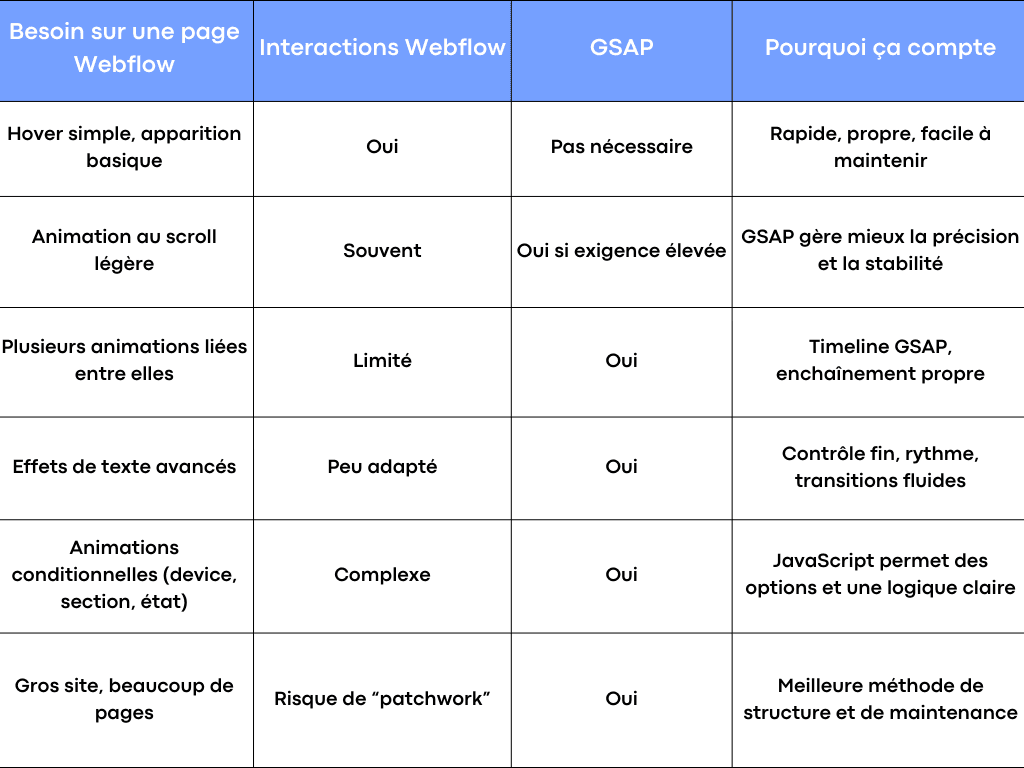
Quick choice between Webflow and GSAP
On acquisition-focused sites, you mainly want to avoid two things: animations that feel “cheap” and interactions that end up in a hard-to-maintain pile. GSAP helps precisely by keeping visual creation consistent and integration sustainable.
The 3 methods for integrating GSAP into Webflow (and the one that works most often)
Integrating GSAP into Webflow is done by adding code. The good news is that Webflow is designed for this. The bad news is that a site can quickly become fragile if you paste JavaScript without a proper method.
The goal here is to understand the options and then choose the safest approach for a professional project.
Method 1: Custom Code in Webflow, in the right place
This is the most classic integration. It involves loading GSAP and writing your animation code in Webflow, either at the site level or at the page level.
The key point is where you place the code:
- Loading the library in the right place avoids conflicts and improves performance.
- Writing the script at the right level prevents unnecessary animations from loading.
What makes the difference isn’t just “adding GSAP.” It’s structuring the integration so users have a smooth experience and the team retains control over the project.
Method 2: Global scripts or page-specific scripts, depending on SEO and performance
In Webflow, you can add global code, which appears on all pages, or code dedicated to a specific page. For acquisition, the best practice is often to limit scope.
If an animation only exists on a landing page, loading it everywhere adds no value. On the contrary, it can weigh on performance, and thus on SEO and user experience.
The healthy approach looks like this:
- Global for common, simple, reusable functions
- Per page for specific animations tied to a section or design
This separation also helps teams. A developer or integrator can quickly find what relates to a page without searching everywhere.
Method 3: Advanced JavaScript organization, useful as the site grows
When you have multiple pages, a CMS, or many animated elements, you benefit from structuring the code like a real project—even if you stay within Webflow.
In practice, we aim for:
- A clear initialization logic, per page or per component
- Short, named, easy-to-read functions
- Robust selectors based on stable Webflow classes
- A “design first, then animation” approach
This is often where the gap widens between a nice animation and one that stands the test of time. It’s also where teams see a productivity gain.
The most requested GSAP animations on Webflow for a high-end result
When we talk about "beautiful animations," we rarely mean gimmicks. On professional sites, the best effects are those that serve the message. They highlight value, guide reading, and create a sense of momentum.
Here are the most widely used patterns today on Webflow with GSAP, because they’re visually effective and they work.
Smooth scroll: the effect that transforms a landing page
Scroll-triggered animation is the most requested feature. On Webflow, you can already achieve a lot. But as soon as you want finesse, GSAP becomes a very strong option.
The most effective animations are often simple:
- A progressive offset of a visual during scrolling
- A section that "locks" briefly to tell a step in the story
- Elements that appear at the right time, in the right order
- A subtle movement across multiple layers to create depth
The expected result is a more natural reading experience. The user quickly grasps the structure. They follow a narrative. And the page appears more professional without overloading the design.
To maintain good performance, aim for movements based on transformations (translate, scale, rotation). This is a key point, as it affects rendering, especially on mobile.
Animated text: improving comprehension without looking like a demo
Animating text can quickly become too flashy. The right approach is to stay in service of the content. On an acquisition-focused page, animated text should help capture attention, then stabilize reading.
The most commonly used effects:
- Clean reveal of a title, as if the text emerges from a mask
- Progressive word-by-word appearance to pace a promise
- Subtle stagger on a list of benefits
- Smooth transition between two text states, without visual jumps
The key consideration is simple: the text must remain readable, indexable, and accessible. We don’t hide the content. We stage it.
Rotation, scale, and short movements: micro-interactions that feel premium
Micro-interactions are an underrated lever. On Webflow, a simple card can become far more engaging with a short, well-calibrated animation.
Common examples:
- Slight rotation of an icon when a section enters the viewport
- Smooth scale on a button or visual on hover
- Fluid transition on a navigation panel
- Animated numbers or data that strengthen proof
These are animations that enhance the user experience without overpowering it. They convey a sense of quality and integrate seamlessly with modern design.
GSAP Timelines: the solution when multiple elements need synchronising
As soon as you have multiple elements to animate together, Webflow can quickly become less readable. GSAP excels with its timeline. You build a clear sequence: step 1, step 2, step 3. With overlaps if needed.
Useful for:
- A hero section with text, image, background, and CTA
- A product section with multiple states
- A multi-step scroll-based storytelling
- A transition between two complex blocks
In production, it’s also a major gain for maintenance. A well-structured timeline is easier to review and adjust. And it reduces unexpected side effects.
From Figma to Webflow, then to GSAP: the method that avoids “tacked-on” animations
A successful animation starts before the code. It starts with design. Many projects skip this step and try to “fix” it later. Result: inconsistent animations, hard-to-select elements, fragile integration.
An effective method follows three steps.
Step 1: prepare the design for animation
In Figma, we don’t just design a pretty mockup. We already think about the elements that will move and how the user will read them.
A few simple principles:
- Identify sections that carry the story and important transitions
- Plan for “wrappers” and masks for text or image reveals
- Limit unnecessary effects, aim for clear visual creation
- Define the motion: direction, duration, rhythm, order of appearance
This step improves productivity. It prevents patching things up in Webflow and makes developers’ work cleaner.
Step 2: build in Webflow with a stable structure
Webflow is perfect for laying out the structure and components. But for GSAP, you need to be rigorous with classes and hierarchy.
What helps the most:
- Clear, consistent, and reusable classes
- Well-structured sections with easily targetable elements
- Responsive design anticipated, with simple breakpoint-based options
This is where we lay the groundwork for a solid integration. A professional website isn’t just about looks—it must remain maintainable, especially when publishing new articles or pages.
Step 3: add GSAP as a “motion” layer in service of the content
With a clean structure, GSAP becomes a logical layer. We animate what matters. We manage scroll with precision. We create smooth transitions. And we maintain consistency across the entire site.
In a business context, the goal is to reinforce a message—not to prove we can create effects. GSAP’s strength lies in its control, allowing us to stay understated and effective.
Animations, performance, and SEO: the trio that determines whether your site holds up
Many assume animations and performance are incompatible. That’s not true. The real issue is the approach. A Webflow site with GSAP can be fast, stable, and SEO-friendly—if we follow a few basic rules.
The type of animation matters more than the number of animations
On the web, some properties are costly. Others are more “safe.” To stay smooth, we prioritize:
- Transform (translate, scale, rotation)
- Opacity
- Well-calibrated transitions, without heavy recalculations
We avoid forcing the browser to recalculate the layout with every movement. That’s where users experience lag, especially on mobile.
Scroll is powerful, but it must remain subtle
Scroll animations can transform a page. But too many scroll animations dilute the message and can cause visual fatigue.
The right approach is to choose:
- One or two truly useful “wow” sections
- Light micro-effects elsewhere, for consistency
- Stable readability, with text remaining the priority
This is better for user experience—and it’s also better for acquisition. A page that gets to the point converts better.
SEO and accessibility: maintaining control
For SEO, the essentials are straightforward. Content must remain accessible to search engines, and the page must load quickly.
For accessibility, we need to consider users who prefer reduced motion. On professional sites, this is a genuine quality standard. We then adapt certain animations without compromising the design.
This level of polish often makes the difference between a 'cool' site and a credible one.
To go further with an animated, fast, and acquisition-focused Webflow site
GSAP on Webflow is a very powerful combination when you want modern animations, a smooth user experience, and a premium visual result. Used well, it’s a real lever to clarify an offer, reinforce positioning, and improve page effectiveness.
If you're aiming for a professional result, with clean integration, strong performance, anda Webflow site designed for acquisition, the Scroll agency can support you. We handle creation, design, integration, and the implementation of advanced GSAP animations, using a method that keeps your project readable and maintainable over time.
Frequently asked questions
Is GSAP suitable for Webflow, even for a showcase site?
Yes, especially if you want clean scroll animations, smooth transitions, and a premium user experience. Webflow already handles a lot, but GSAP adds useful precision as soon as the design becomes more ambitious.
Is GSAP compatible with responsive design and mobile?
Yes, but the approach matters. You need to adapt certain animations based on breakpoints, limit heavy effects, and prioritize transform-based movements to maintain good performance.
Can GSAP harm SEO?
Not if the integration is done properly. A Webflow site optimized with GSAP can remain fast and stable. The key is to keep text accessible, avoid loading unnecessary code, and follow performance best practices.
Do you need developers to use GSAP on Webflow?
You can start without being a developer, but a truly professional result often requires a structured approach. The JavaScript must remain clean, maintainable, and consistent with the Webflow structure. It’s mainly a question of method and integration quality.