Blog · AI
Figma MCP: Connect Your Designs to Your Database
Discover Figma MCP: connect your Figma designs to your API or database, align components, variables, and code, and deliver faster without technical debt.
What if your Figma designs could “explain” their logic to an LLM while connecting to your API or database? That’s the exact promise of Figma MCP—when properly scoped.
In short: what Figma MCP brings to a product team
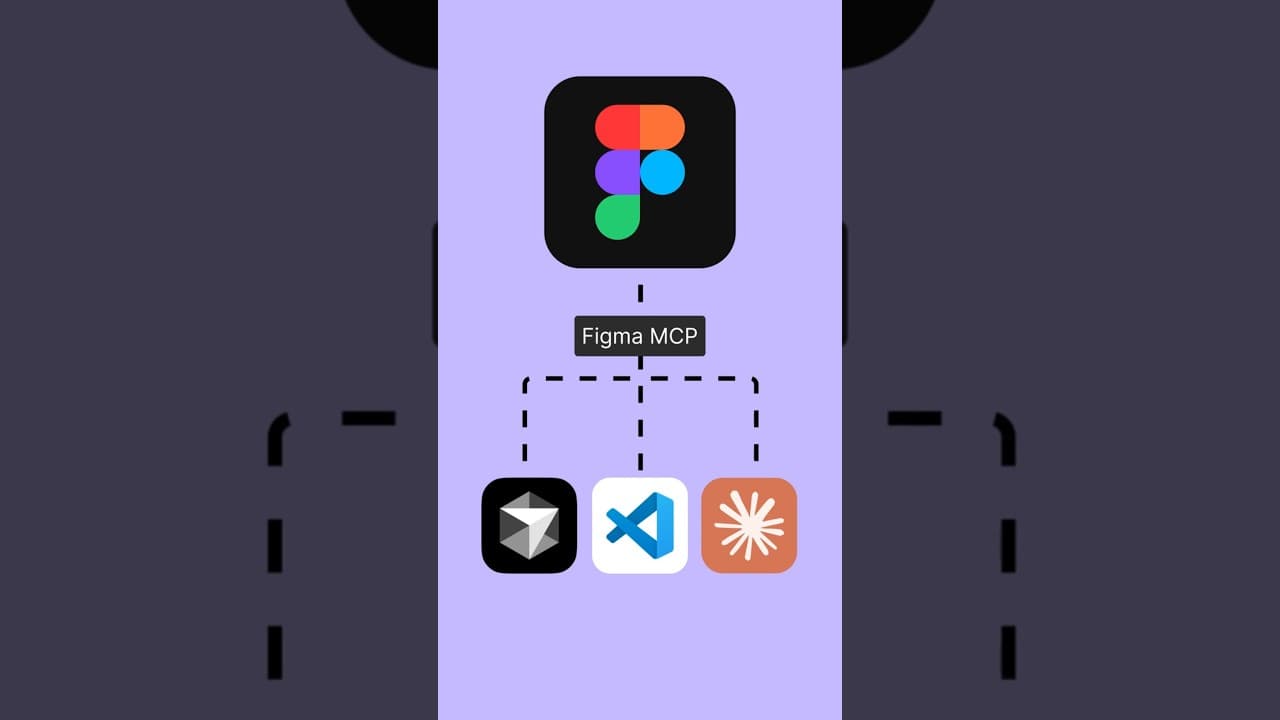
Figma MCP (Model Context Protocol) enables the transfer of the context of your Figma designs (components, variables, structure, styles) to an MCP client like Cursor, VS Code, or Claude Code. This client can then combine that context with your codebase and data (API, server, database) to produce more accurate code, faster.
Practically, you use it to:
- generate code from a Figma screen without losing details (layout, variables, components)
- maintain consistency between design system and implementation, even when multiple developers work in parallel
- connect a UI to real data via an API or server, with the right fields and states
- speed up iterations, especially for data-driven products (catalogs, back-offices, dashboards)
The “Figma → code → data” workflow in 7 steps
- Structure design in Figma (components, variables, useful names)
- Start a MCP server Figma (desktop or remote server)
- Connect your MCP client (Cursor, VS Code, Claude Code)
- Manage access via OAuth or a token depending on the mode
- Add the “data” context (API endpoints, DB schema, server rules)
- Generate UI code aligned with design, then connect the data
- Lock in quality (states, errors, performance, security, rules)
The goal isn’t to “automate everything.” The goal is to get a pipeline that’s more reliable, with safeguards.
MCP: what it is exactly and why everyone’s adopting it
The Model Context Protocol (MCP) is an protocol open standard for connecting LLM apps to external sources. Instead of building a custom integration between each tool and each model, it standardizes: a server exposes tools, a client they call it.
Why does this matter for Figma?
- An LLM that receives the right context (component names, variables, constraints, hierarchy) can be precise.
- The gap between prototype and product has narrowed, especially with prompt-to-app approaches. Figma pushes this logic further with Make and “design context everywhere” access.
How “connecting a design to a database” actually works
We often talk about “connecting Figma to a DB” as if Figma would read Postgres. In practice, the useful connection is elsewhere: you connect an agent (in your IDE) to Figma, then this agent connects your UI to the data via your API or your server.
The 4 building blocks to know
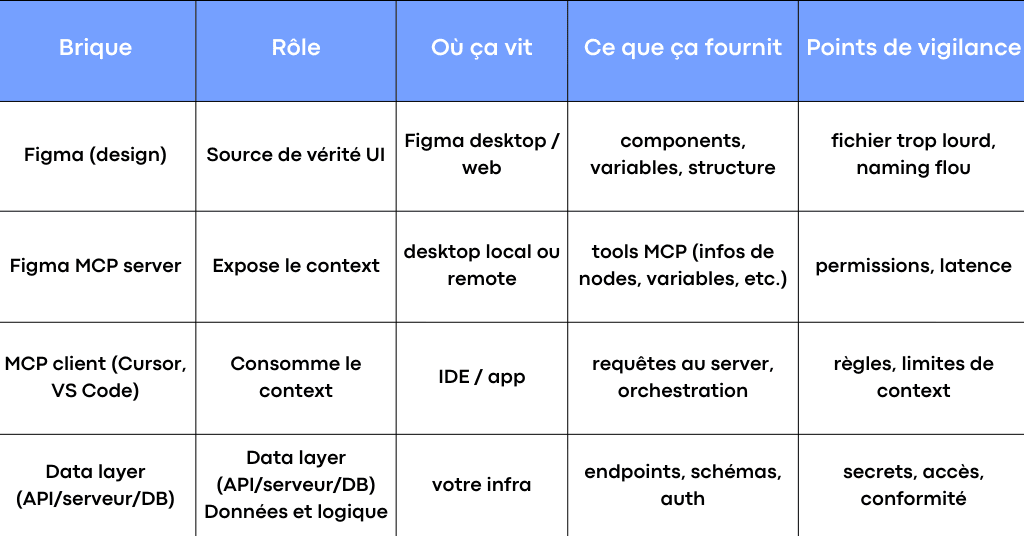
Figma documents two ways to connect its MCP server: desktop (local) and remote (hosted).
Desktop or remote: which to choose in an SME
The right choice depends on your organisation, not the hype.
- Desktop MCP server : ideal for getting started quickly. It runs locally via the Figma desktop app. Figma provides a local server URL (127.0.0.1) for client-side configuration.
- Remote MCP server : useful when you want to connect without relying on a specific machine, or when the team is distributed. It connects to an endpoint hosted by Figma and uses OAuth authentication.
A simple rule of thumb:
- small team, fast iterations, need a reliable POC: desktop
- multi-dev team, tool-driven process, need consistent access: remote
What Figma MCP changes for design and code
The main benefit isn’t “generating code.” The main benefit is aligning three worlds that struggle to communicate:
- design (Figma)
- the reality of code (codebase, conventions, existing components)
- the reality of data (API, server rules, formats)
With MCP, you create a “corridor” of context that reduces information loss. And that’s often where costs hide: QA feedback, inconsistencies, forgotten states, component duplication.
The most cost-effective (and most requested) use cases
Product catalogues: e-commerce, B2B, marketplaces
A Figma screen for “product listing + product page” looks simple, but data quickly breaks the design:
- variants, promo prices, stock, badges, sorting rules
- cards that change based on status or customer segment
With a well-structured MCP workflow, you aim for two outcomes:
- code components that mirror the design structure (grids, spacing, typography, variables)
- a clear mapping between data fields and UI, without inventing properties
Here, the LLM is useful if it can read your design and your API in the same context.
Marketing pages and CMS: speed without technical debt
When content lives in a CMS, the challenge isn’t layout. It’s robustness:
- "empty", "loading", "error" states
- reusable components, not a stack of unique sections
- simple server-side rules (caching, revalidation, security)
Figma MCP helps maintain visual consistency while developers retain control over server rules.
Dashboards and back-office: the real life of data
For a back-office, the Figma screen is just the start. Then come:
- tables, filters, pagination, sorting
- access rights, roles, audit
- performance and readability
The MCP + API contract combo is useful here, as it forces design to account for states and constraints.
Living design system: variables, components, conventions
This is often the most underrated use case. When your Figma variables are clean and your components are well-defined, the generated code becomes more stable. And above all, it becomes reusable.
Figma highlights the extraction of variables and components via its MCP server to improve code consistency.
Implementation: from Figma to Cursor, then to your API
The goal here isn’t to give you a magic recipe. The goal is to clarify the steps, so you know what to frame in your workflow.
Enable the MCP server on the Figma side
Desktop option
In Figma desktop, switch to Dev Mode, then enable the desktop MCP server in the inspection panel. Figma then displays the server’s local address.
Remote option (hosted)
You connect your client (VS Code, Cursor, Claude Code) to the remote Figma server via the MCP endpoint, then grant access (OAuth). Figma’s documentation shows an example mcp.json configuration for VS Code and a guided flow for Cursor.
Example VS Code configuration (remote):
{
"inputs": [],
"servers": {
"figma": {
"url": "https://mcp.figma.com/mcp",
"type": "http"
}
}
}
Give the LLM the right context, without overwhelming it
This is what separates “wow in demo” projects from reliable ones.
Two useful modes exist on the Figma side:
- selection-based (mostly desktop): you select a frame or layer in Figma, then the client works on that selection
- link-based (remote and desktop): you provide a link to a node, the client extracts the node-id and retrieves the context
In a real product, links work well for framing. Selection works well for rapid iteration.
Connecting the database: the pattern that avoids issues
The healthiest pattern for an SME is often:
- UI generated or assisted via MCP
- data via a API controlled (REST/GraphQL) on the server side
- secrets and access rules exclusively on the server side
Direct DB access from an MCP tool can exist, but it must be locked down. Otherwise, you create an unnecessary risk surface, especially with poorly managed tokens.
Getting code that faithfully matches the design (not “close enough”)
When an LLM outputs “clean” but incorrect code, it’s not a model issue. It’s a context and conventions issue.
On the Figma side: what improves quality
- Des components named like real components, not “Frame 123”
- Des variables that are consistent (typography, spacing, colors) rather than isolated values
- Limited but intentional variants (size, state, intent)
- Lightweight frames: less noise, more signal
Figma recommends to avoid overly heavy frames and structure the file for better results.
On the codebase side: the key lies in your rules
The LLM must understand:
- your conventions (naming, folders, linting)
- your existing components
- how you connect to the API (fetch layer, services, hooks, cache)
This is where many teams save time: they turn MCP into a real team workflow, not just a personal tool.
Security, access, tokens: what to lock down before connecting
As soon as you “connect” an LLM to tools, you’re managing permissions. That’s good news if it’s done right. Bad news if it’s implicit.
Simple rules that prevent 80% of issues
- A token never has more permissions than necessary
- No secrets in the client—everything goes through the server
- Separate environments (dev, staging, prod)
- Server-side logs to track which tool was called, when, and why
- A short list of allowed tools, with key rotation if needed
Remote MCP: OAuth and control
The remote MCP server for Figma uses an OAuth flow. This is a good thing, as it prevents static keys from being distributed everywhere.
At this stage, what matters is your governance: who can access which Figma files, and in what context.
For an overview of the protocol and essential MCP servers, see our comprehensive MCP 2026 guide.
To go from mockup to a data-connected app, without technical debt
Figma MCP is a powerful lever when treated as a proper product matter: conventions, security, access, API mapping, and codebase integration. This is exactly what separates an impressive demo from a reliable daily workflow.
At Scroll, we help SMEs, startups, and entrepreneurs implement this design → code → data pipeline with a simple framework: design system, MCP server and client (Cursor, VS Code), generation rules, and clean integration with your server and API. The goal is clear: deliver faster without losing control.
Frequently asked questions
Is Figma MCP only for code generation?
No. The core focus is the design context— variables, components, structure. Code is one possible output, but the real value is making design “readable” by an agent in your workflow.
Does MCP replace a design system?
No. MCP enhances what you already have. If your design system is unclear, the LLM will have an unclear context. If your variables and components are well-defined, you gain in quality.
Does Figma MCP work with Make?
Figma has announced updates to make its tools more accessible to agents, including expanded use of the MCP server around Make and prompt-to-app workflows.